M365 - Rapid SharePoint recovery strategies : minimal downtime
When it comes to M365, downtime means lost productivity, and it’s even more critical for SharePoint corporate sites. To manage this risk, a solid disaster recovery plan needs to be in place, with one key question in mind: what’s my targeted RTO for this data?


Bit by bit, over time, my M365 tenant has grown, and I’ve come to realize that most of my critical assets now live entirely in Microsoft 365.
Sure, I trust Microsoft… but let’s not forget what their EULA clearly states :
We recommend that you regularly backup Your Content and Data that you store on the Services"
So, I use Veeam Data Cloud, a convenient and reliable cloud-to-cloud backup solution. It works great, but like most cloud backup tools, it relies heavily on Microsoft Graph API for M365. And let’s be honest: when it comes to performance, Graph API isn’t exactly known for blazing speed.
That’s why I got excited when a new set of APIs became available in my Veeam Data Cloud tenant : MBS, Microsoft 365 Backup Storage API, straight from Microsoft !
Let’s dive into Veeam Data Cloud MBS backups and see what this new generation of API brings to the table !
What needs to be planned for an efficient M365 disaster recovery (DR) strategy ?
(because good backups are just the beginning !)
Alright, here is the plan :
- How does GraphAPI works?
- What are the limitations?
- What's the performance of GraphAPI? (in real life)
- How does MBS API works?
- What are the current limitations and potential downsides?
- What are the performance of MBS? (in real life)
- Conclusion
1/ How does GraphAPI works?
Microsoft Graph API is a RESTful endpoint that gives access to Microsoft 365 data.
It works on a per-item basis, allowing you to retrieve data item by item and store it in a backup repository.
It operates based on the following logic :
- locate/enumerate the folders/ files/mails
- get the metadatas
- get the datas
- Get the attach file(s) (if it's a mail)
- Retrieve data in chunks when the size exceeds the API payload window
So, each item consumes API calls to locate and retrieve the data. Now imagine you’ve got a multi TB SharePoint loaded with millions of files... that turns into multi-millions of API calls, each adding its own bit of network latency.
You can guess what happens next... things slow down... A lot ! 🐌
And that’s not the only pain point…
There are a few more surprises waiting in the shadows... because, of course, it couldn’t be that simple! 😈
2/ What are the limitations?
Just like any SaaS provider, Microsoft has to protect its SLA, so they’re not about to let you go wild with unlimited API calls.
And that’s where the real villain enters the scene:
Allow me to introduce you to Mr Throttling, the not-so-friendly guardian of Microsoft’s API gates.

He doesn’t say much… but he sure knows how to slow things down when you’re having too much fun! 😅
What happen ? To protect their services, Microsoft enforces API call limits on your tenant.
Hit that limit ? Simple, you’ll have to wait before making another call.
No shortcut, no bypass, just sit tight and let throttling do its thing.
Want to confirm it’s throttling? Easy, just check the response of your API call.
If you see "error 429 – Too Many Requests", that’s your proof.
It usually looks like this:
HTTP/1.1 429 Too Many Requests, Content-Type: application/json, Retry-After: 60, {"error": {"code": "TooManyRequests", "message": "Rate limit is exceeded. Retry after 60 seconds.", "innerError": {"date": "2025-03-15T12:34:56Z", "request-id": "12345abc-de67-890f-gh12-325778ijklmn", "client-request-id": "12345abc-de67-890f-gh12-325778ijklmn"}}}So, I know you, my fellow techies, your next question is probably :
"Alright, but what’s the actual limit on those API calls?"
Well… it’s not that simple. Microsoft doesn’t give a fixed number, they use dynamic, service-specific thresholds based on your tenant’s usage pattern.
Since OneDrive and SharePoint share the same throttling mechanism, you'll find how it works explained in this dedicated page from MS documentation for SharePoint/OneDrive throttling management.
To sum it all up: here’s what we’re dealing with :
- Your tenant gets a maximum number of API calls based on its size, mainly the number of licenced users.

But that’s not all:
- The cadence of requests is monitored per minute and per day.
- Bandwidth usage is tracked hourly, both for ingress (data in) and egress (data out).
- And to top it off, there’s also a per-app logic, meaning limits are enforced individually per registered application.
- And finally, Resource Units, that define how much juice each API call consumes, based on its type.

Funny, isn’t it?! Well… unless you’re in the middle of a backup and the throttling brakes you. Or even worse, in a middle of a restoration because your SharePoint was completely down !😬🔥
3/ What's the performance of GraphAPI? (in real life)
I used my m365 Generator tool to automatically build a SharePoint site called "Sales" and fill it up with files and folders.
It's packing 1.04 TB and 1,235,553 files and 5032 folders.
It's starting to become a bit of a big baby in the SharePoint world, nothing monstrous, but definitely not small anymore ! 😉
Backups have been running incrementally for a while now, and it only takes a few minutes to create the new daily restore point. Easy peasy.
But when it comes to restoring, how does that actually play out?
What if my SharePoint site gets hit by ransomware and everything is encrypted?
What’s the real downtime going to look like ? What's my real RTO?
Well, let’s find out the hard way:
Let’s delete everything… 💣 and try to restore it.
Let’s see what happens when theory meets reality. 😅
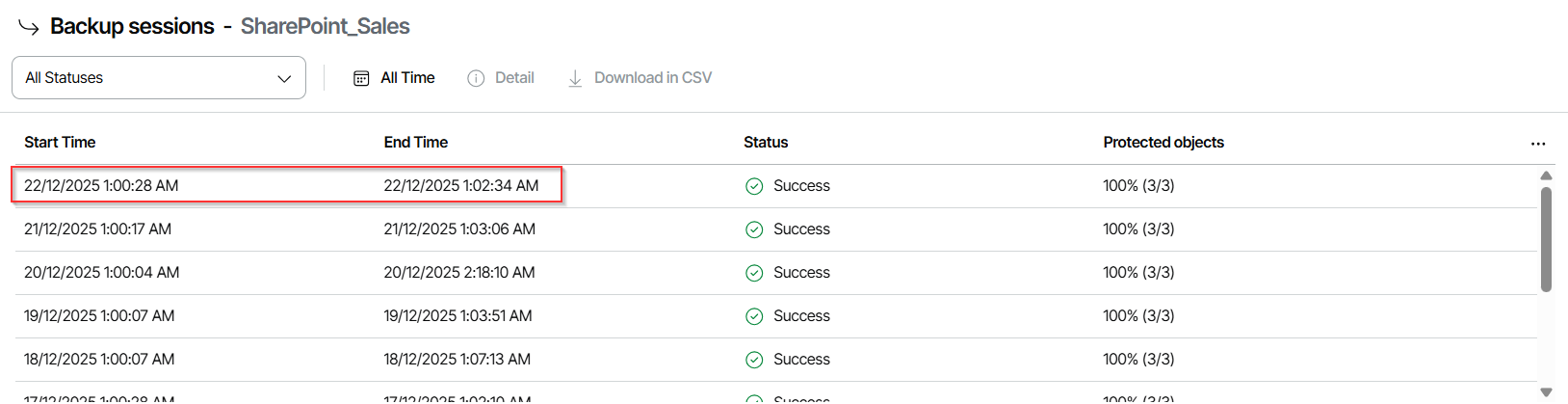
Gentlemen, it's December 28th, 2:31 PM, my TB SharePoint, packed with millions of files, as been destroyed. Time to kick off a restore session and bring it back to life !
I kicked off a restore session to bring back the entire SharePoint site. Let’s see how that goes...

✅ Bling! Done!
It just wrapped up, so... what does it look like?
It’s January 4th, 2:34:32 AM, and the job has successfully restored the entire SharePoint site.

So what’s the final score?
The restore took exactly 6 days, 12 hours, 2 minutes, and 10 seconds.
Yep… massive disaster, massive downtime. But hey, it’s back, time to breathe again!
But still, it clearly shows the mechanism and highlights the problem when fast recovery is needed.
This limits, and the throttling that comes with it, isn’t a Veeam-specific issue.
Every third-party backup solution using Microsoft Graph is subject to the same restrictions. Everybody has the same bottleneck from MS Graph API.
Now, let’s see how it goes with the MBS API.
4/ How does MBS API works?
Yes, MBS uses Microsoft Graph API, but not to directly access or transfer your data like traditional backup do.
Instead, here’s how it actually works:
- MBS/Veeam deploys an Enterprise Application in your tenant, this acts as the Backup Controller Application.
- This app is registered via Graph and granted specific permissions to operate on behalf of your M365 tenant.
- Its role? Not to collect data, but to instruct Microsoft’s internal backup services on what to back up or restore.
- All actual data handling is done by Microsoft’s internal infrastructure, not via Graph API calls for data transfer.
Key advantage: Because data movement doesn’t rely on Graph API, MBS isn’t subject to Graph throttling limits related to data volume or number of objects.
▪️Where’s the data stored?
Data is stored in a proprietary, append-only, immutable storage system, fully managed by Microsoft 365. It follows the same data residency rules as your production data, ensuring compliance and locality. No data is moved outside.
▪️How does Microsoft Backup Storage technically capture changes?
For Exchange Online, when an item is modified, the Exchange backend detects the change (most likely through internal service logging, though Microsoft hasn’t publicly documented the exact mechanism). When that happens, a new complete version of the object is generated. This version is then written to the MBS storage, in an append-only manner, timestamped, and associated with a logical restore point.
Over time, MBS builds up a history of versions that can later be assembled during a restore.
For OneDrive and SharePoint, the logic is quite similar. Each time a document changes, a full copy of the file, including its content, metadata, permissions, and versioning information, is stored in the MBS system as a SharePoint object.
These are also stored in append-only format and linked to restore points.
So MBS is based on "object-level restore points" being built on object version, then, the restore engine pulls together the required versions when requested.
▪️What makes it fast?
The entire restore process happens natively inside Microsoft 365.
There’s no data export, no network transfer, no Graph API throttling, and no need to rebuild application databases.
Instead, the backend re-injects pre-indexed, immutable versions of native M365 objects (like mail items and documents) directly into their original services at the chosen point in time.
5/ What are the current limitations and potential downsides?
First off, MBS doesn’t cover everything. It takes great care of Exchange Online, SharePoint Online, and OneDrive, but Teams is still out of the party (for now).
Next up: retention. With MBS, it’s a take-it-or-leave-it deal. The retention period is fixed at one year, not a day more, not a day less.
Another thing to keep in mind: MBS lives entirely inside Microsoft’s boundaries. That’s great for performance and integration, but it also means no exporting data elsewhere. Your backups stay right next to production data, in the same Microsoft neighborhood.
It’s also worth noting: MBS isn’t fully granular, at least, not yet.
For OneDrive and SharePoint, restores happen at the full object level. That means no picking and choosing individual files or folders. It’s all or nothing, the entire document library or OneDrive gets rolled back.
And finally, RPO and backup frequency are 100% Microsoft-controlled. You can’t tweak them, you can’t force a backup, and you can’t delay one either.
In short: native, simple, efficient… but not exactly customizable.
Here’s a quick look at the official backup frequency table from Microsoft documentation.

6/ What are the performance of MBS? (in real life)
Now, let’s switch gears and use Veeam Data Cloud’s native MBS integration to restore that same SharePoint site.
We'll kick off the restore and measure how long it takes to get everything back up and running, clean, complete, and ready for action.
SharePoint site destroyed… once again! 😅
It’s January 5th, 5:03:47 PM, time to kick off another restore session using Veeam MBS latest recovery point this time.
Stopwatch ready? Let’s go!
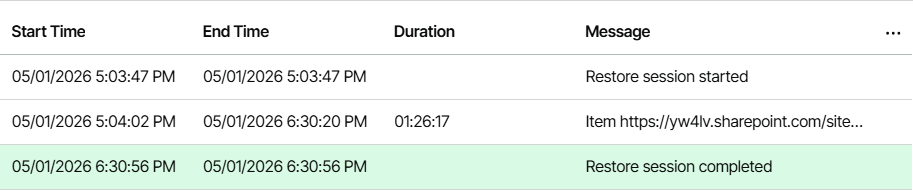
So yes, my dear techie friends, it took just 1 hour, 26 minutes, and 17 seconds for MBS to restore my 1TB SharePoint site! 😲
That’s seriously impressive, especially when you compare it to the 6 full days it took using a Graph API-based recovery.
From "oh no" to "back in business" in under 90 minutes... well done Veeam MBS!
Not bad, right? But hey… let’s be a little foolish, can we go even faster?
Ladies and Gentlemen, allow me to introduce Fast Recovery Points from Veeam MBS, which is what Microsoft refers in their documentation as “Express Restore Points.”
Here’s the idea: within the latest 14 days of your backup retention (captured every 10 minutes), the system selects certain points in time and materializes them as full, consistent snapshots, ready for ultra-fast restore.
These fast points are created on the same 10-minute backup schedule, but are flagged by the system as Express restore points (likely the last backup of the day or another regular interval, though Microsoft doesn’t disclose the exact criteria).
What makes them special is that they already have indexing and object resolution baked in.
For services like SharePoint, that means:
- The full site hierarchy,
- File versions,
- And metadata at that moment in time
are all pre-indexed and resolved, allowing the restore engine to instantly locate and reassemble the required files, without scanning through layers of incremental deltas.
In short:
An express point = a fully materialized snapshot.
So instead of replaying a long list of changes, the system just drops the full state back into place, fast and efficient.
So guys, buckle up, it's time to shift into hyperspace speed!

Let’s drop a restore session and see what these Express Restore Points are really made of!
It’s January 5th, 9:23 AM, let’s fire it up and see just how fast this hyperspace recovery really is.
Stopwatch ready? Go!
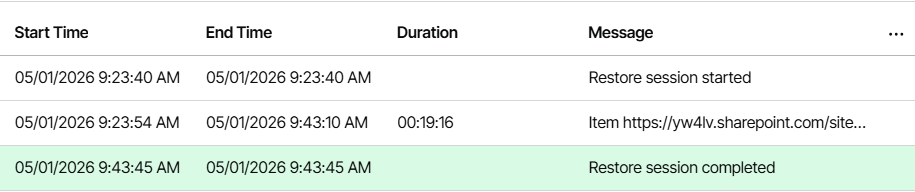
Yes… it took just 19 minutes to restore my 1TB SharePoint site with millions of files! 🤯
What!?... Wow! 🤩
Veeam MBS is downright performant, no doubt about it.
And to back that up, here’s the official performance level straight from Microsoft’s documentation:
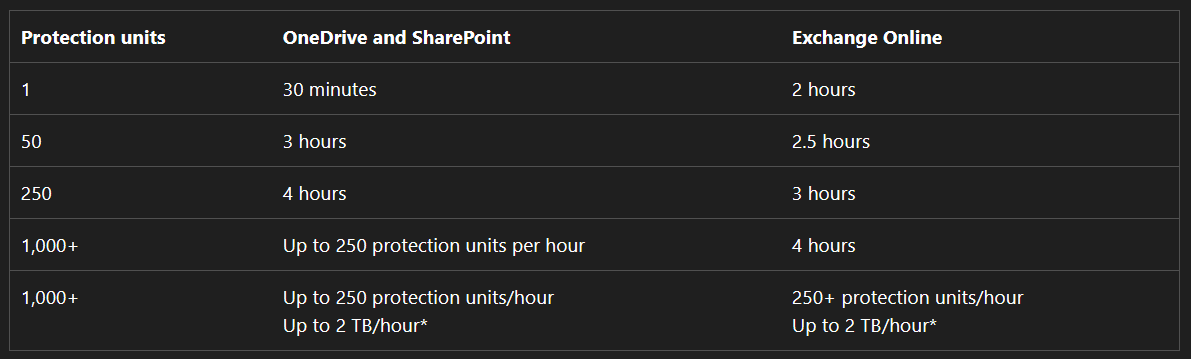
These aren’t just marketing numbers, they reflect the real-world speed you can expect when restoring with MBS.
Each mailbox, SharePoint site, or OneDrive account is restored through its own isolated backend pipeline, which means Microsoft can run multiple restores in parallel.
7/ Conclusion
So, as a conclusion, should you drop everything else and swear allegiance to Veeam MBS alone?
Well, you could… but from where I stand, that’s not the wisest play.
Let’s be clear, MBS is a beast. It’s fast, clean, and so tightly integrated with Microsoft 365 that you’d think it was born there. With features like Express Restore Points, it can resurrect a 1TB SharePoint site faster than your coffee machine finishes a brew. No Graph API throttling, no external dependencies, just smooth, in-place, lightning-speed recovery. For disaster recovery, ransomware rollback, and low RTO needs, it absolutely shines.
But even superheroes have their limits. MBS comes with a fixed retention policy (one year), and there’s no dialing it up or down. That’s fine for most operational needs, but if you’ve got compliance rules breathing down your neck asking for 5 or 10 year retention, it might fall short. And while MBS can bring entire sites or accounts back from the dead, it doesn’t yet let you surgically restore that one folder your CFO accidentally deleted. It’s more of a “bring back the kingdom” than a “retrieve the lost scroll” kind of deal.
Now, don’t get me wrong, none of that makes MBS a bad choice. Far from it. It’s just that if you go all-in on it, you might find yourself wishing you had a bit more room to maneuver when things get… regulatory.
That’s why I say: why choose, when you can combine?
Let MBS do what it does best: blazing-fast native recovery for your high-impact workloads.
And let Graph API-based backups handle the heavy-lifting when it comes to long-term retention, compliance, and fine-tuned restores. Sure, it’s slower, but it gives you that surgical control and storage flexibility MBS doesn’t aim to offer.
So no, MBS isn’t a "one tool to rule them all", but pair it with the right complement, and you’ve got a backup strategy that’s robust, efficient, and ready for anything.
That’s it, my dear fellow techies, my deep dive into M365 protection and the common challenge of bringing those heavyweight SharePoint whales back to life in a timely manner.

It’s been a ride, full of throttling, recovery timers, and a bit of cloud magic, but hopefully, it gave you some real-world insight into what works, what hurts, and where the smart strategies live.
See you in the next one, my dear techie fellows!